

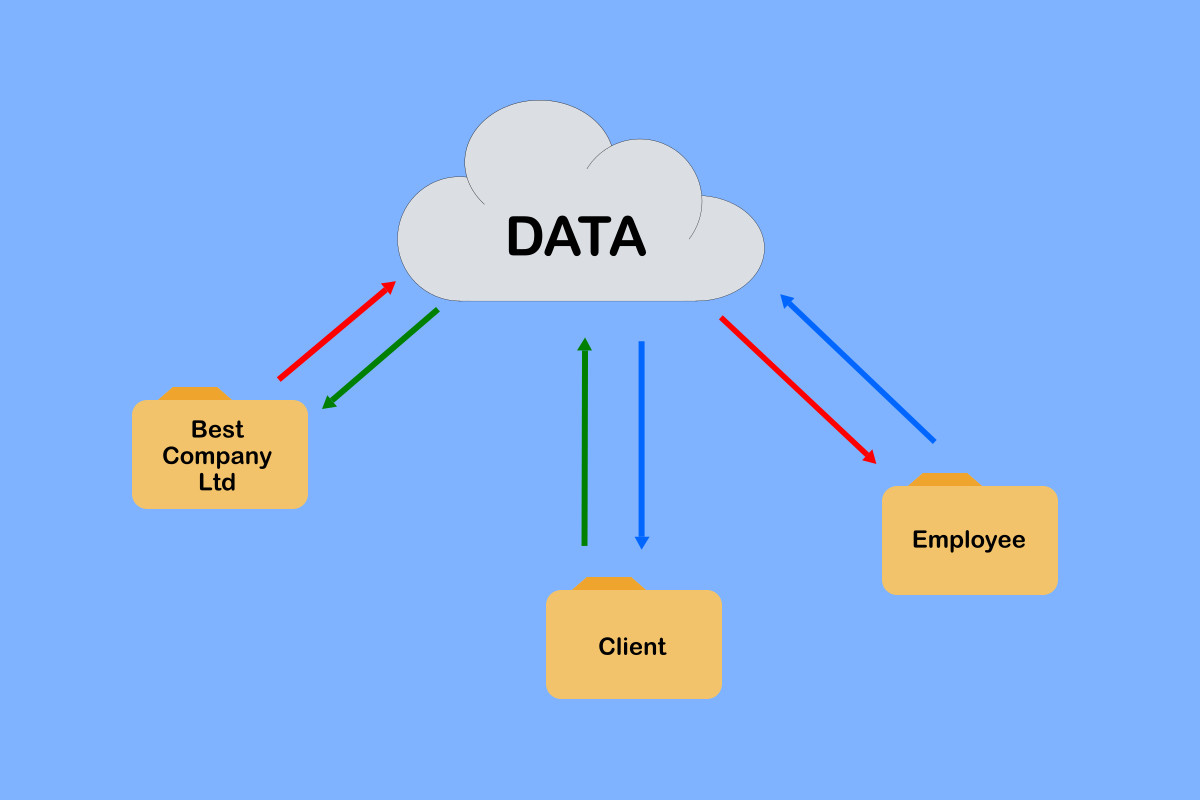
How often do we want to share electronic documents with our clients, employees, or others—whether in Microsoft Word, Excel, PDF, or other formats? While we can email files, it is not always the best option. We may want to share a file that others can work on or at least view the latest version of. This is where cloud storage can be utilised.
Many individuals and businesses are now taking advantage of cloud storage solutions to store their files online, accessible from anywhere on several different devices. There are a variety of offerings to choose from, so you are bound to find a solution that works for you. A well-known cloud storage solution is Dropbox, offering various plans with varying amounts of storage and features. They have a free plan with 2 GB of storage; you can start with the free plan and upgrade from there as needed.
Dropbox Free Plan – Get a Dropbox free account
Dropbox Paid Plans – Dropbox Paid Plans Webpage
Today we will discuss how to share a Dropbox folder with someone else who also has a Dropbox account. This is a convenient and effective way to share folders and files. Once you have set up a shared folder, any changes made by you or the other person to the documents and files within the shared folder will be synchronised, so you will both be looking at the same information.
If you are a Dropbox user or contemplating using Dropbox, read on.
Sharing a Dropbox Folder is Quick and Easy
There are a couple of ways to set up a Dropbox Folder Share:
- From within the desktop app.
- From the web portal.
From within the Desktop App
How to Set Up a Dropbox Folder Share – Desktop App:
- Go to Dropbox on your desktop.
- Go to the folder that you want to share.
- Right-click on the folder to open a menu.
- Click on “Share” within the menu.
- A dialog box will open. First you need to select whether the recipient can edit the folder or can view only. You will see the selection for this on the right side of “Anyone with the link”. Click the drop-down arrow and then click on the option you want.
- Click in the “Add an email or name” box. Enter the email address of the person that you want to share the folder with — this should be their Dropbox email username. Once done, click back in the main area of the dialog box.
- If you want to add a message to the recipient’s email invite, click in the “Add a note (optional)” box and enter your message. Then click back in the main area of the dialog box.
- Click “Share folder.”
- If you see “Close” at the bottom right corner of the dialog box, click on this; if not, move to the next step.
- Click the “X” in the top right corner of the dialog box to close it.
The recipient will receive an email with a button to add the shared folder to their Dropbox.
How to Remove a Dropbox Folder Share – Desktop App:
- Go to Dropbox on your desktop.
- Go to the folder that you want to un-share.
- Right-click on the folder to open a menu.
- Click on “Manage folder access”.
- A dialog box will open. To the right of the person you want to remove, click “can edit” or “can view.”
- From the drop-down menu, click on “Remove.”
- A new dialog box will open. If you want to allow the person you shared the folder with to keep a copy of the folder, you can click the box to the left of “Let – person’s name – keep a copy of this shared folder”. If you do not click the box, the folder will be removed completely from their Dropbox.
- Click “Remove”.
- If you see “Close” at the bottom right of the dialog box, click on this; if not, move to the next step.
- Click the “X” in the top right corner of the dialog box to close it.
The folder is now unshared.
For more detailed instructions (in PDF) that you can download or print, click on this link – Share a Dropbox Folder – Desktop App
From the Web Portal
How to Set Up a Dropbox Folder Share – Web Portal:
- Open your web browser and go to the Dropbox login webpage
- Sign into your Dropbox.
- Go to the folder you would like to share.
- Hover your mouse over the folder.
- The “Share” button will appear. Click on it.
- In the dialog box that opens, click on “Add people.”
- Add the email address of the person that you want to share the folder with – this should be their Dropbox email username. Once you have done this, press enter on your keyboard.
- Click in the dialog box in a different area to where you entered the email address.
- If you want to add a message for the recipient, click in the “Add message (optional)” box and enter it. Then click back in the main area of the dialog box.
- Next you need to select whether the recipient can edit the folder or can view only. You will see the selection for this on the right side of “People added”. Click the drop-down arrow and then click on the option you want.
- Click “Share.”
The recipient will receive an email with a button to add the shared folder to their Dropbox.
How to Remove a Dropbox Folder Share – Web Portal:
- Open your web browser and go to the Dropbox login webpage
- Sign into your Dropbox.
- Go to the folder you would like to un-share.
- Click on “members.”
- A dialog box will open. To the right of the person that you want to remove the share from – click “can edit” or “can view”.
- From the drop-down menu, click on “Remove.”
- A new dialog box will open. If you want to allow the person you shared the folder with to keep a copy of the folder, you can click the box to the left of “Let – person’s name – keep a copy of this shared folder”. If you do not click the box, the folder will be removed completely from their Dropbox.
- Click “Remove”.
- If you see “Close” at the bottom right of the dialog box, click on this; if not, move to the next step.
- Click the “X” in the top right corner of the dialog box to close it.
The folder is now unshared.
For more detailed instructions (in PDF) that you can download or print, click on this link – Share a Dropbox Folder – Web Portal
How to Accept a Dropbox Folder Share
- Go to your emails and find the email from the person or organisation that sent you the share. Open the email.
- Look for the “Add to Dropbox” button and click it.
- This opens your web browser and takes you to your Dropbox login page.
- Type in your password and click “Log in.”
- Once logged in, you will see the shared folder. You can view or edit the folder and its contents, based on the permissions the sharer has assigned to you.
If you are using the Dropbox desktop or mobile app, the shared folder will now be added there too.
For more detailed instructions (in PDF) that you can download or print, click on this link – Accept a Dropbox Folder Share

Disclaimer: The content on our site is for general information only and not professional advice. Always seek professional guidance before acting on any information here. While we strive for accuracy, we cannot guarantee completeness or timeliness of the content.